

Is your computer suddenly crawling when it used to be lightning fast? You’re not alone—and the good news is, you don’t have to be stuck with a slow machine.
Whether you’re trying to work, game, or just browse the web, a sluggish computer can be frustrating and waste your time. But before you consider costly repairs or a new device, there are simple steps you can take right now to bring back that speed and responsiveness you miss.
Keep reading, and you’ll discover 7 easy troubleshooting tips that anyone can follow to get your computer running smoothly again—no tech degree needed. Ready to fix your slow computer today? Let’s dive in!
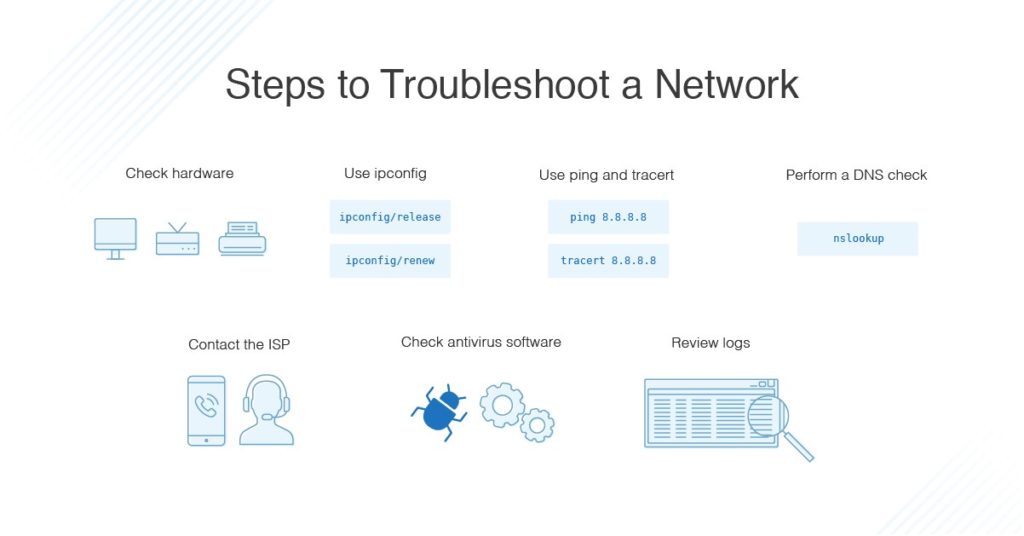
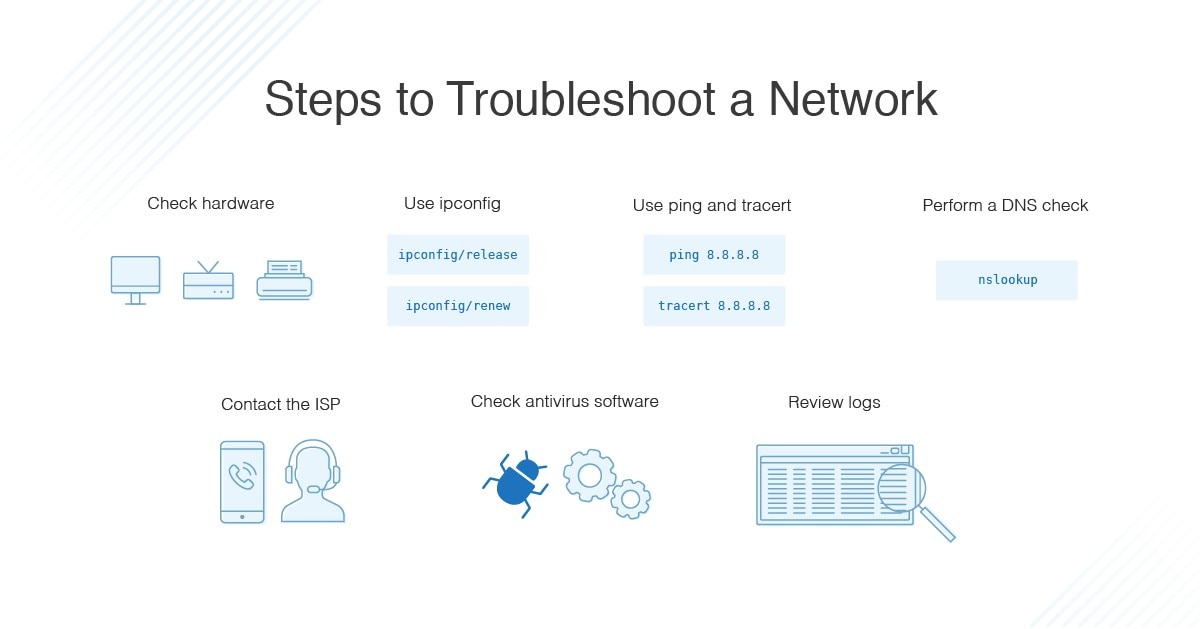
Credit: www.dnsstuff.com
Common Causes Of Slowdowns
Many factors cause a computer to slow down. Understanding these common causes helps fix the problem faster. Slow computers often show high resource use, cluttered storage, malware, outdated software, or hardware limits. Each one affects performance differently and needs specific steps to resolve. Below are the main reasons your computer might run slow.
High Cpu And Memory Usage
Programs using too much CPU or memory can slow your computer. Background apps or heavy software demand high resources. Check Task Manager to find such programs. Ending these tasks frees up power and speeds up your system.
Cluttered Storage
Full hard drives reduce speed and cause delays. Temporary files, old downloads, and unused apps take space. Cleaning up storage improves performance. Use disk cleanup tools to remove junk files and free space.
Malware Infections
Malware can secretly use your computer’s resources. It causes slowdowns, crashes, and strange behavior. Running antivirus scans helps detect and remove malware. Keep your security software updated for protection.
Outdated Software
Old operating systems and programs may have bugs or security flaws. Updates fix these issues and improve speed. Regularly update your OS, drivers, and apps to maintain smooth performance.
Hardware Limitations
Older computers may struggle with modern software demands. Limited RAM, slow hard drives, or aging processors cause lag. Upgrading hardware components like adding RAM or switching to an SSD can boost speed significantly.
Restart Your Computer
Restarting your computer is often the easiest and fastest way to fix slow performance. It helps clear out temporary glitches and frees up system resources. Many people overlook this simple step, but it can solve many common problems quickly.
A restart closes all running programs and refreshes the operating system. This process can stop apps that are using too much memory or CPU. Restarting can also fix software bugs that build up over time and slow your machine down.
Benefits Of Rebooting
A reboot clears temporary files stored in memory. It stops background processes that may be stuck or using high resources. This frees up CPU and RAM for other tasks. Restarting can improve overall system speed and stability.
It also resets network connections, which can fix internet speed issues. Sometimes updates require a restart to finish installing properly. This keeps your system secure and running smoothly.
When To Restart
Restart your computer if it feels slow or unresponsive. Try it before running complex troubleshooting steps. Restart after installing software or system updates. It is also good practice to reboot regularly, at least once a day or week.
If your computer freezes or programs crash, a restart can help. It is a quick fix to clear errors and restore normal function. Avoid leaving your computer on for long periods without restarting.
Check Task Manager
Checking the Task Manager is a quick way to find out why your computer runs slow. It shows which apps use most of your computer’s power. You can spot programs that take too much CPU, memory, or disk space. This helps you decide which apps to close or manage. Task Manager gives a clear view of your system’s health in real time. It is an essential tool for troubleshooting slow performance.
Identifying Resource-hogging Apps
Open Task Manager by pressing Ctrl + Shift + Esc. Look at the “Processes” tab to see running apps and background tasks. Check the columns for CPU, Memory, and Disk usage. Apps using high percentages can slow your computer down. Some apps may use more resources than needed. Spotting these apps helps you understand what drains your system’s power. Focus on programs that stay at the top of the list.
Ending Unnecessary Processes
Select a resource-heavy app causing slowdowns. Click “End Task” to close it immediately. This frees up CPU and memory for other programs. Be careful not to close important system processes. Ending unnecessary tasks can improve speed quickly. Repeat this for all apps that use too many resources. This simple step often solves slow computer problems fast.
Credit: www.dell.com
Manage Startup Programs
Managing startup programs is a key step to speed up your computer. Many apps launch automatically when you start your PC. These apps consume memory and CPU, slowing the system down.
Reducing unnecessary startup apps frees resources. This helps your computer run smoother and faster. It also lowers the boot time, so your system is ready quicker.
Disabling Unneeded Startup Apps
Open Task Manager by pressing Ctrl + Shift + Esc. Go to the Startup tab to see all apps set to launch at boot. Look for apps you do not need right away. Right-click and select “Disable” to stop them from starting automatically. Focus on apps that use high startup impact. Disabling these does not delete the app; it only stops auto-launch.
Improving Boot Times
Fewer startup apps mean faster boot times. Your computer completes the startup process quickly. You spend less time waiting to use your PC. This small change makes a big difference in daily use. Regularly review startup programs and disable the ones you rarely use.
Clean Up Junk Files
Cleaning up junk files is a key step to boost your computer’s speed. Over time, unnecessary files pile up and take valuable space. This clutter slows down your system and affects performance. Regular cleanup frees up disk space and helps your computer run smoother.
Focus on removing files you no longer need. Temporary files, caches, and system logs often fill your hard drive. Deleting these safely improves speed without harming your data. You can do this manually or use built-in tools for an easy cleanup.
Using Disk Cleanup Tools
Disk cleanup tools scan your computer for junk files. They identify files that can be deleted safely. Windows has a built-in Disk Cleanup utility that is simple to use. Open it by typing “Disk Cleanup” in the search bar and select your drive.
The tool shows categories like temporary files, recycle bin, and system files. Choose what to delete and click “OK” to remove them. This process frees disk space and reduces clutter quickly. Regular use keeps your computer tidy and responsive.
Removing Temporary Files
Temporary files are created by apps and the system during use. These files are meant to be deleted automatically but often remain. They consume storage and slow down your computer over time.
To remove temporary files, press Windows + R, type “%temp%”, and hit Enter. A folder with temporary files opens. Select all files and delete them. You may skip some files in use. Clearing these files helps speed up your system.
Credit: www.dnsstuff.com
Run Malware Scans
Malware can make your computer very slow. Malicious software uses your system resources without your knowledge. Running malware scans helps find and remove these harmful programs. This step is essential for a smoother and safer computer experience.
Choosing Antivirus Software
Pick antivirus software that fits your needs. Free options work well for basic protection. Paid versions offer extra features like real-time scanning and automatic updates. Check for good reviews and regular updates. Avoid unknown or suspicious programs to keep your computer safe.
Performing Full System Scans
Run a full system scan, not just a quick one. Full scans check every file and folder on your computer. This process can take time but catches hidden malware. Schedule scans during low-usage hours. Remove any threats the software finds immediately to improve speed and security.
Keep Software Updated
Keeping your software updated plays a key role in maintaining your computer’s speed and stability. Updates fix bugs and patch security holes. They also improve how your system and programs run.
Old software can cause slowdowns and crashes. Updating ensures your computer uses the latest technology. It helps avoid conflicts between different programs and hardware. Regular updates keep your machine running smoothly and securely.
Updating Operating System
Your operating system (OS) controls how your computer works. Updating it fixes errors and adds new features. These updates improve performance and protect against viruses.
Check for OS updates regularly. On Windows, go to Settings > Update & Security > Windows Update. On macOS, open System Preferences > Software Update. Install all important updates promptly.
Updating Drivers And Applications
Drivers connect your hardware to the OS. Outdated drivers can slow down your computer or cause errors. Update drivers to keep hardware running well.
Applications also need updates. Developers fix bugs and enhance features in updates. Use the app’s built-in update tool or visit the official website. This reduces crashes and keeps apps responsive.
Uninstall Unused Programs
Unused programs take up space and slow your computer. Removing them helps your system run smoother. This step is easy and effective for improving speed.
Many apps install extra features that run in the background. These tasks use memory and CPU, reducing your computer’s performance. Uninstalling programs you don’t use stops these hidden processes.
Freeing Up Disk Space
Unused programs fill your hard drive with unnecessary files. Removing them frees up valuable disk space. More free space means your computer can work faster and store new files.
Deleting these programs also clears leftover files that slow down the system. A cleaner disk improves overall computer speed and responsiveness.
Reducing Background Tasks
Some programs run automatically even when not in use. These background tasks use CPU and memory, making your computer sluggish. Uninstalling unused software stops these tasks from running.
With fewer background processes, your computer has more resources for important tasks. This leads to faster startup and smoother operation throughout the day.
Optimize Web Browsers
Web browsers often slow down over time. This affects overall computer speed. Optimizing your browser can improve performance and reduce lag. Small changes inside your browser make a big difference. Let’s explore simple ways to boost your browser speed.
Clearing Cache And Cookies
Browsers save cache and cookies to load pages faster. Over time, these files build up and cause slowdowns. Clearing them frees space and refreshes browser data. It can fix loading errors and speed up browsing.
To clear cache and cookies, open your browser settings. Find the privacy or history section. Select the option to clear browsing data. Choose cache and cookies, then confirm. Restart your browser to see faster results.
Managing Extensions
Extensions add features but can slow your browser. Too many active extensions use memory and CPU. Disable or remove extensions you don’t need. This lightens browser load and improves speed.
Go to your browser’s extensions menu. Review all installed extensions. Turn off or delete those rarely used. Keep only essential ones active. This simple step helps your browser run smoother.
Hardware Upgrades
Hardware upgrades can significantly improve your computer’s speed and performance. Over time, older components may slow down your system. Replacing or adding new parts often makes your computer feel like new. Focus on upgrading key hardware elements that directly impact speed and efficiency.
Switching To Ssd
Replacing a traditional hard drive with a solid state drive (SSD) is one of the best upgrades. SSDs access data much faster than hard disk drives (HDDs). This change reduces boot time and speeds up file transfers. Programs open quickly and multitasking becomes smoother. SSDs have no moving parts, so they are more durable and silent.
Adding More Ram
Random Access Memory (RAM) helps your computer run multiple programs at once. When RAM is low, the system slows down and struggles with many apps open. Adding more RAM increases your computer’s ability to handle tasks. It reduces lag and stops freezing during heavy use. More RAM is especially helpful for browsers, games, and creative software.
Cleaning Fans To Prevent Overheating
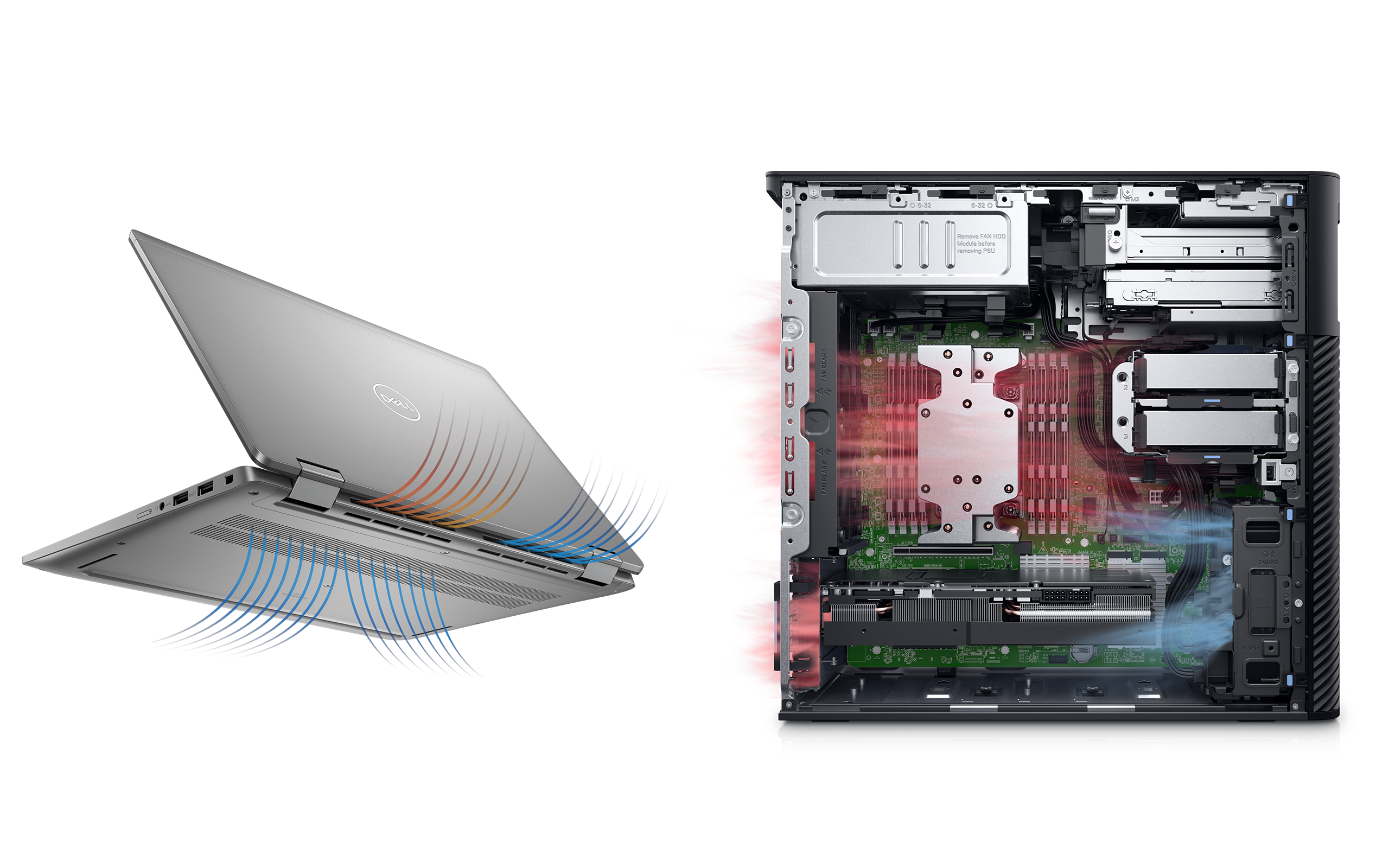
Dust and dirt build-up inside your computer can block fans and vents. This causes overheating, which slows down the CPU to avoid damage. Cleaning fans regularly helps keep your computer cool and running fast. Use compressed air to remove dust from vents and fan blades. A cooler system maintains peak performance and extends hardware life.
Reset Or Reinstall Windows
Resetting or reinstalling Windows can give your computer a fresh start. This step often fixes slow performance caused by corrupted files or software conflicts. It removes unwanted programs and resets settings to default. You get a clean system without old clutter slowing things down.
Before choosing this option, know that it takes time and effort. You must prepare carefully to avoid data loss. This process can be simple if you follow clear steps and backup your important files first.
When To Consider A Fresh Install
Try a fresh install if your computer remains slow after other fixes. Also, consider it if errors and crashes continue. Resetting Windows can fix system corruption and remove malware deeply hidden. It is useful when removing many unwanted programs is hard. Choose this step as a last resort for serious issues.
Backing Up Important Data
Save your files before resetting or reinstalling Windows. Copy important documents, photos, and videos to an external drive or cloud storage. Do not rely only on the reset process to keep your data safe. Also, export bookmarks and save software keys you may need. This prevents data loss and makes recovery easier after the reset.
Frequently Asked Questions
How Do You Troubleshoot A Slow Running Computer?
Restart your computer to clear temporary issues. Check Task Manager for high CPU or memory use and close heavy apps. Disable unnecessary startup programs. Clean junk files and run malware scans. Keep your software updated. Consider upgrading hardware like adding RAM or switching to an SSD.
What Are The 7 Basic Computer Troubleshooting Guides?
The 7 basic computer troubleshooting guides are: restart the computer, check Task Manager, manage startup apps, clean junk files, scan for malware, update software, and check hardware components.
How Do I Figure Out What Is Slowing Down My Computer?
Restart your computer, check Task Manager for high CPU or memory use, disable startup programs, clean junk files, scan for malware, and update software. Consider hardware upgrades like adding RAM or switching to an SSD if slowness persists.
How To Make A Slow Computer Fast Again?
Restart your computer, close resource-heavy apps via Task Manager, disable startup programs, clean junk files, run malware scans, update software, and consider hardware upgrades like SSD or more RAM.
Conclusion
A slow computer can cause real frustration. Follow these seven easy steps to boost speed. Start by restarting and checking for heavy apps. Clean junk files and manage startup programs next. Scan for malware and keep your software updated. If needed, consider hardware upgrades like SSD or more RAM.
Regular care helps your computer run smoothly and faster. Keep these tips handy to fix slowdowns quickly. Your computer will thank you with better performance.